4. Field Playbook
Last updated: July 16, 2026
The app narrates a normal delivery for you – the walkthrough in The App & a Standard Delivery covers that. Trust the app. It's built to drive itself and complete most deliveries with no input from you. This is for the moments it doesn't handle on its own.
1 · When to step in
Most of the time, do nothing. This is the list for when the app needs a decision or something goes sideways.
Before pickup
Situation | What you do | What happens |
|---|---|---|
This isn't a run you can take (e.g. you can't reach the address) | Reject (give a reason) | The orders go back to the Autolane pool for another car |
The run clearly shouldn't happen | Cancel | Ops is alerted to handle it. Note: this does not cancel the orders with the merchant – the food may still be made, so only use it when you're sure |
At the store
Situation | What you do |
|---|---|
Store is running late | Nothing – just wait. It's expected, and it's not your fault. You'll note "store behind" at pickup |
Screen says "estimated ready – verify in store" | Check with the staff. Ready times are estimates, so confirm before you load |
Also while you're at the store:
A button looks grayed out but the order should be actionable. Confirm the state with Dispatch, proceed if the order's in hand, and log the ambiguity in your report.
Check the paper receipt when you load. Special instructions sometimes live on the receipt and never reach the app – like "call the customer on arrival." If the receipt and the app disagree, follow the receipt and log the mismatch. The autonomy system can't see receipt-only instructions.
Large order that won't fit one compartment. Use the secondary compartment for overflow and log it. Overflow handling isn't formalized yet, so record every time it happens.
On the way (to the store or the customer)
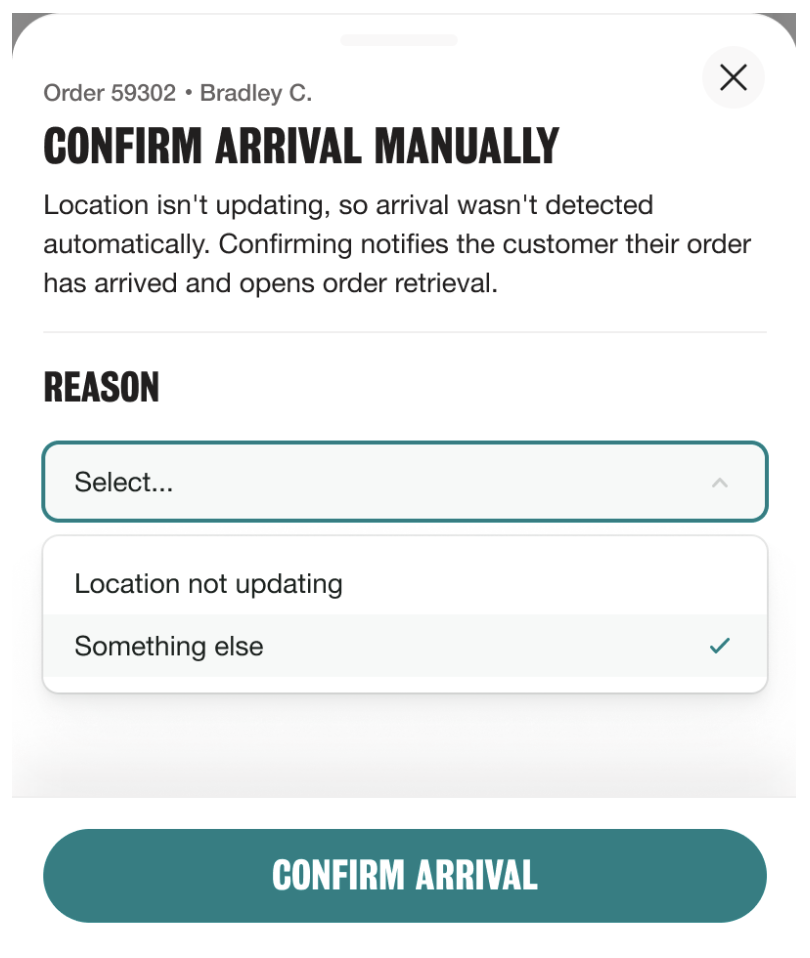
Location stops updating. Tap 'Confirm arrival manually' (give a reason). If the location catches back up first, the app takes over on its own.
The vehicle navigates badly – heads for a parking garage, an exit-only lane, a wrong entrance, misreads a street as a driveway, or sets up an unsafe U-turn. Take manual control right away, reposition, and re-engage autonomy when it's safe. Safety beats letting the system figure it out. Parking garages are never a valid stop – not for order retrieval, not for a manual drop-off, not even when the garage belongs to the delivery address. Don't follow the vehicle into one.
The vehicle drives past a waiting customer. The vehicle navigates to its computed point, not to the person standing there, and it may keep going past customers at the curb. Take manual control, safely stop near the customer, and log it when it happens.
After you tap Return to Store, check the route. Treat the return leg like a delivery leg: check where it's actually going and take over if it's wrong. Log what happened.
Delivery address didn't transfer to the vehicle but you can see it in the app. Enter it into the vehicle's navigation by hand and continue. Log it.
The vehicle stops short of the destination with better parking clearly available. Judgment call. If it's safe and quick, reposition. Otherwise park and walk it. Either way, log the gap.
Dense downtown at night. Budget for time: the last half mile can eat most of the delivery time in congestion. A bike-lane stop with hazards on works as a brief stop where it's legal and safe (using manual takeover). Never block moving traffic.
At the customer
Situation | What you do |
|---|---|
Customer opens the trunk and takes it | Nothing – it completes automatically |
Trunk opened, but no confirmation once the timer's up 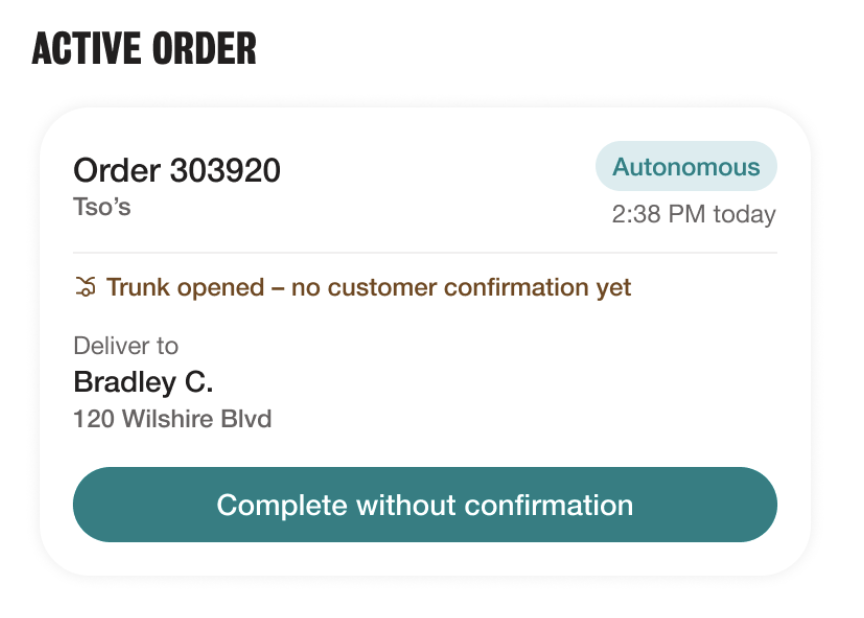 | Mark the order as complete |
Customer is a no-show, or can't open the trunk 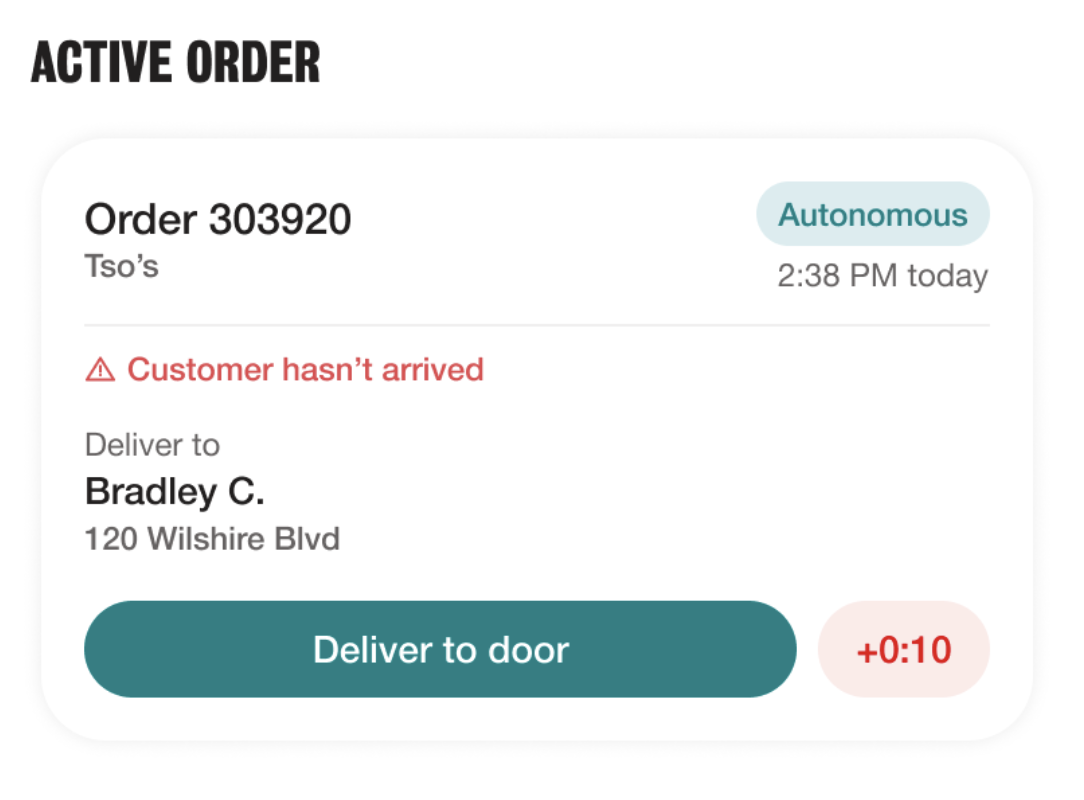 | Deliver to the door (hand it over or leave it). Fill the short form. |
You genuinely can't deliver (no safe spot, refused, wrong address) | Mark undeliverable: log the reason + a photo. Don't return food to the store – follow the merchant's disposal rule |
The finer points of an autonomous handoff:
Stay in the vehicle and stay low profile. The whole idea is that nobody's needed. Don't get out, wave, or open the trunk unless it calls for a fallback. People will peek into the cabin out of curiosity – that's normal, no response needed.
At night, turn the dome lights off by hand. When the vehicle goes into Park the interior lights come on and light you up. Manually switch them off on every nighttime autonomous arrival.
Trunk taking 30–45 seconds to open is fine, especially for a first-timer. Don't jump in just because it's not instant.
A confused customer. Common one: they picked autonomous but walk up, knock on the window, or try the door handles because they don't get it. Roll down the window, ask how you can help, and walk them to the text link – have them tap the trunk button themselves so they learn it. Most go from confused to delighted in under a minute. Note it in the delivery feedback.
Customer forces the trunk – bangs on it, pries it open, shoves it shut. Most common with people less familiar with the tech. Don't physically intervene unless someone's genuinely struggling or at risk. Log every forced-trunk event in the delivery notes.
When an order is split order across two compartments. Customers typically find the second one on their own. If you know it's split, no need to break the autonomous model – note it and let them finish.
"Customer hasn't confirmed" prompt while their timer is ongoing. Don't rush to complete. If nothing's actually wrong, let the timer window run out and it'll complete cleanly. Log it if it happens.
Manual deliveries
Some orders are Manual – the customer opted out of using the trunk.
The car still drives itself through the whole flow.
At the customer, hand the order to the person or leave it at the door, then complete the form.
Everything before the drop-off is the same as a normal delivery. A few things specific to manual drops:
Arrival detection can lag. You can be at the door with the food delivered and the app still hasn't registered arrival. Confirm arrival manually rather than waiting on the app to update your location.
Instructions can be incomplete in the app. Apartment numbers, gate codes, floors, call-on-arrival requests – some of it only shows on the paper receipt. Missing something? Call Dispatch.
Expect to walk. Curbs, bike lanes, and parking often stop the car short of the door. Pick a safe, legal spot and cover the rest on foot instead of letting the car circle.
2 · Batched orders
A batch is two or more orders picked up together on one run. You'll see multiple orders on the same pickup, and the app sequences the drop-offs.
Confirm every order before you leave the store. Check each order against a name or address before you drive off.
The app can lose track of what's in the trunk. Call Dispatch, have them confirm pickup on the dashboard, get the address and instructions from them, and complete the delivery. Dispatch can fix the stuck state from the console. Log it with order numbers and timing.
Batches can cover real distance. Drops can be miles apart. Treat each leg as its own delivery – recheck the order tag, the address, and any instructions before each one.
3 · Recording what the forms miss
The notes are the whole point of the pilot. Two rules:
Voice while moving. Use voice-to-text to dictate hands-free. Typing while the vehicle's moving competes with your attention and isn't allowed.
Type only when stopped. Parked, waiting at the store, or between runs.
The end-of-delivery forms cover the basics – packing issues, conditions, customer behavior. Note all of the important things in the free-text fields and your end-of-shift report:
Customer patterns the form doesn't list: confusion, window knocks, door-handle tries, cabin peeking, needing to be coached. Capture the clean, zero-friction deliveries too – those are the benchmark.
Vehicle and navigation: garage-seeking, wrong entrances, misread driveways, stopping short, driving past customers, unsafe U-turns, return-to-store routing errors, and any manual takeover with the reason.
Access and parking at the address: curb access, bike-lane barricades, gated or concierge buildings, floors and elevators, paid parking, handoff distance.
Store conditions: staffing, ticket times, catering surges, instructions that show on the receipt but not the app.
App and flow gaps: missing order numbers or names, missing instructions, order status mismatches, feedback timing, unexpected prompts, anything that made you hesitate.
Screenshots go in the report thread. Log the wins as well as the problems – both help.
4 · Getting help
The support button is always on screen. Tap it to reach Dispatch. A chat is available, but we recommend calling for anything urgent.
Dispatch is the answer for anything the app doesn't show: order details on batches, assignment problems, state fixes, missing instructions, alerts, shift changes, judgment calls.
If a customer complains about food quality (cold, wrong item, missing item), point them to the merchant – that's not something Autolane handles.
Never handle support tickets while driving. Route customers and tickets to Dispatch.
5 · Good to know
Hazard lights should be on while the car is parked at a stop – use the toggle in the app.
Return to depot is available in the app – send the car back when you're done. It won't head back on its own.
Some steps have a timer – for example, picking up an order from the store, and the window for the customer to come out at the drop-off. The app shows the countdown when it applies; just keep things moving.
Screen lock. The app holds the screen awake during a run. If your phone still locks mid-delivery, report it with your device model.
Idle time is normal at current volume – order flow depends on the merchant pushing orders. Use the gaps for notes and vehicle checks.
Location-sharing icon on the vehicle screen is normal. It means the system asked the car directly for its position because the feed went quiet.