3. The Driver App & a Standard Delivery
Last updated: July 16, 2026
As an Autolane supervisor, you ride along in a self-driving vehicle and make sure each delivery goes smoothly. This guide walks you through the app and exactly what to do at each step.
1 · Your job, in one line
The app drives itself. You ride along, watch, and step in only at a few specific moments.
On a normal delivery you'll tap twice and fill two short forms – that's it. The app moves itself forward as the car drives and the clock runs. You don't push it along.
The single most important habit: if the app is moving on its own, let it. Stepping in when you don't need to is the most common mistake.
2 · Two kinds of order
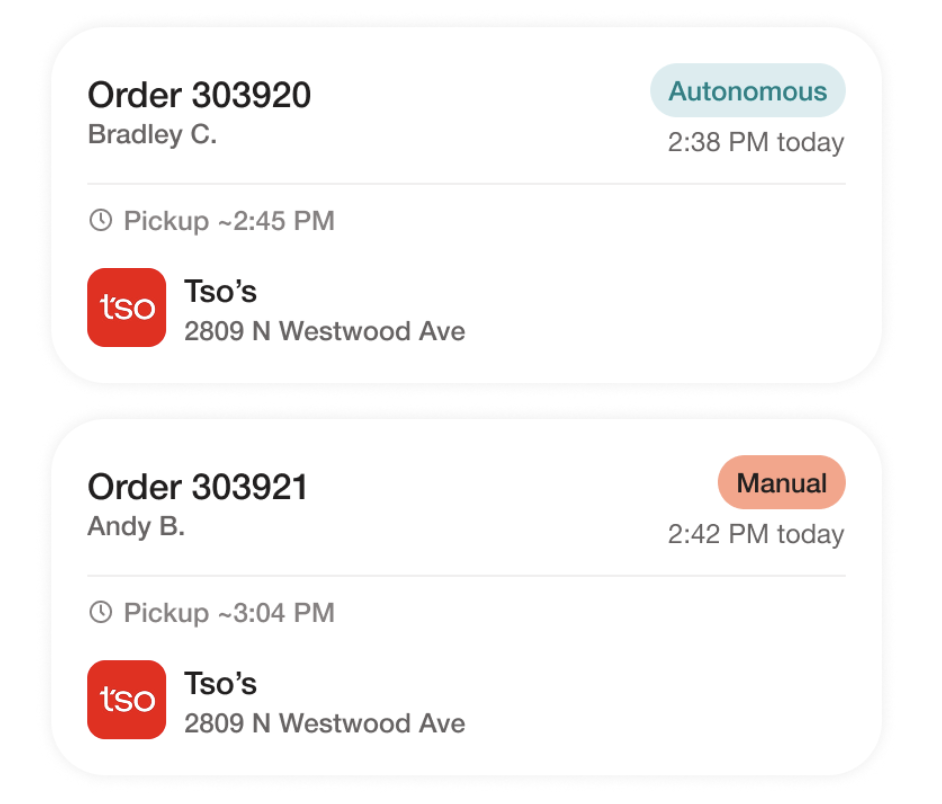
You'll see a tag on every order card telling you which kind it is:
Autonomous – the customer gets the order out of the trunk themselves using a link on their phone. You usually never leave the car.
Manual – the customer asked for a person, so you hand the order over at the door. The car still drives itself there.
3 · How a delivery flows
Every delivery follows the same path. The app advances through it automatically:
Assigned → On the way to store → At store → Load the order → Complete pickup → Start delivery → Delivering → Arrived → Complete delivery → Done
The only moments that need you:
At the store: Complete pickup (photo + was it ready?) and Start delivery (head to the customer).
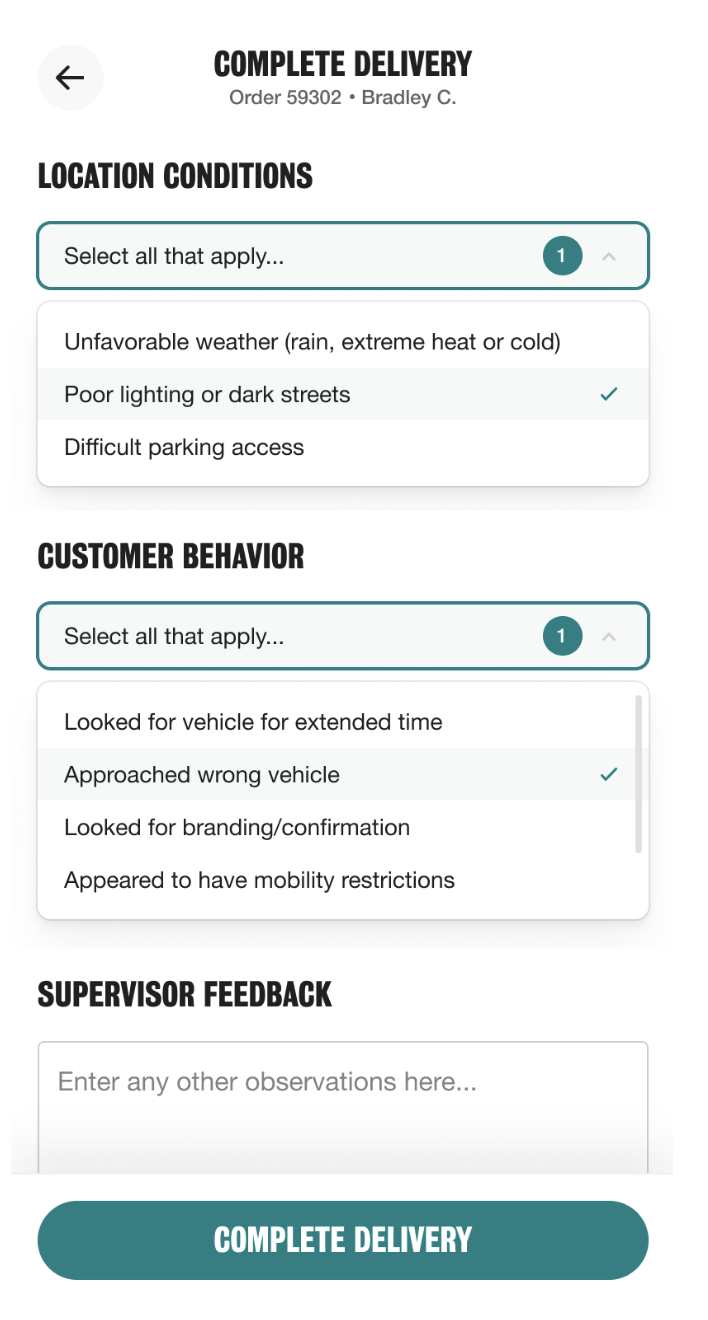
At the customer: Complete delivery (how the delivery went)
Everything else happens on its own.
4 · Walking through an Autonomous delivery
This is the happy path – what you'll do most of the time.
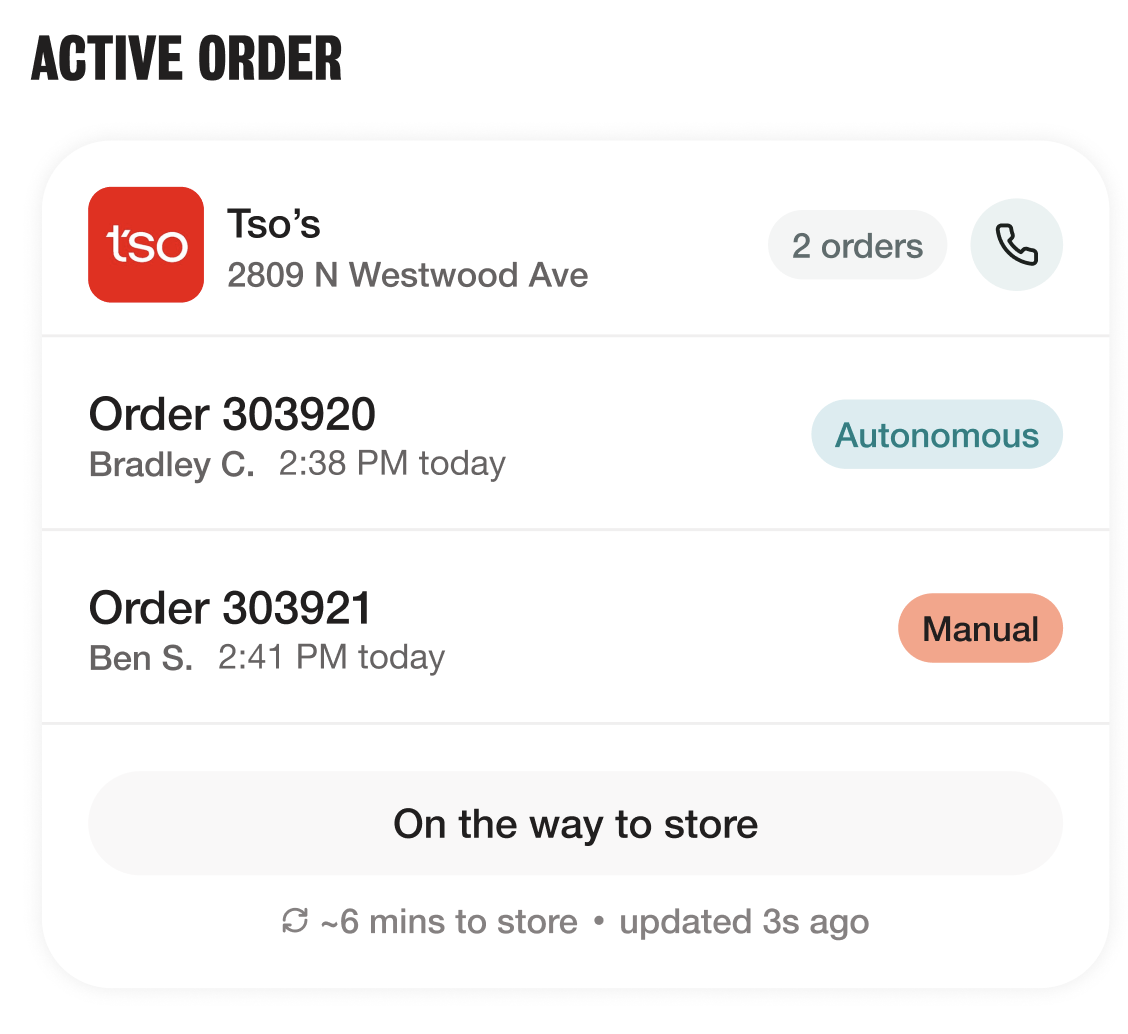
1. An order appears as your Active Order. You don't claim or accept anything – the car drives itself to the store. You may be assigned one or multiple orders in a run (a Batch).
3. At the store, wait for the order. When it's ready, the "Load order in trunk" button appears. If your run is a Batch with multiple orders, you may need to wait for all of them to be ready. Load them one at a time and you'll complete a form for each order in the batch.
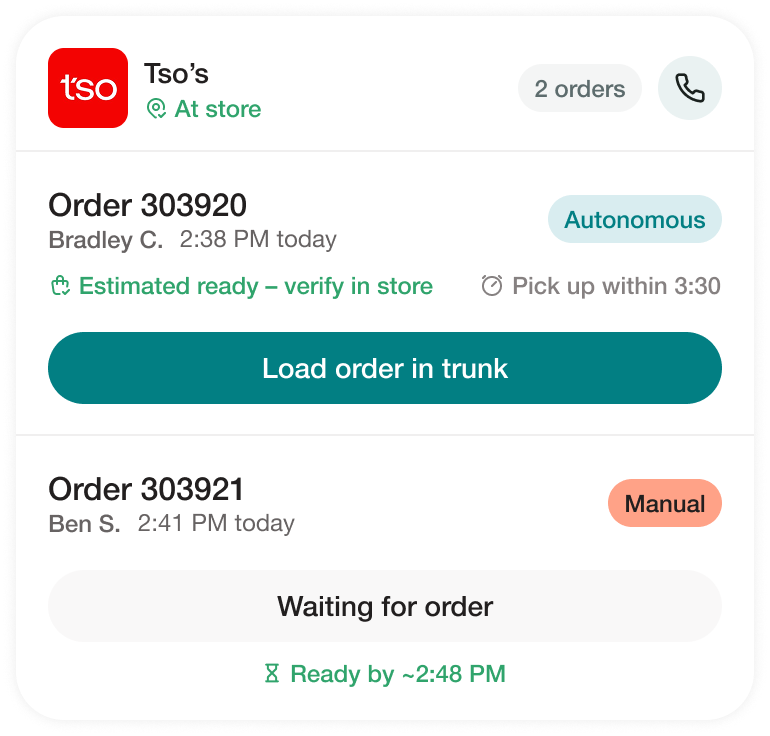
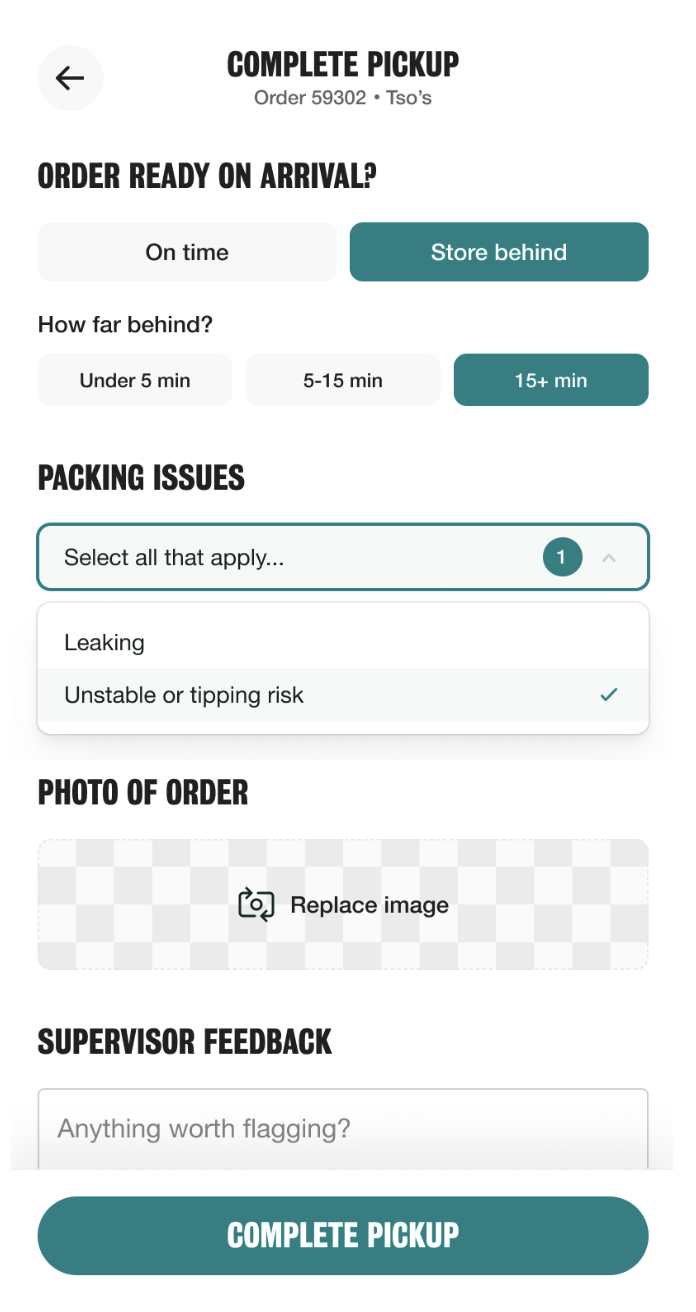
4. Tap "Load order in trunk," load the food, then Complete pickup: take a photo and note whether the order was on time or the store was behind.
5. Tap "Start delivery." The car drives itself to the customer. The customer gets a text with a link and a timer to come out to the car.
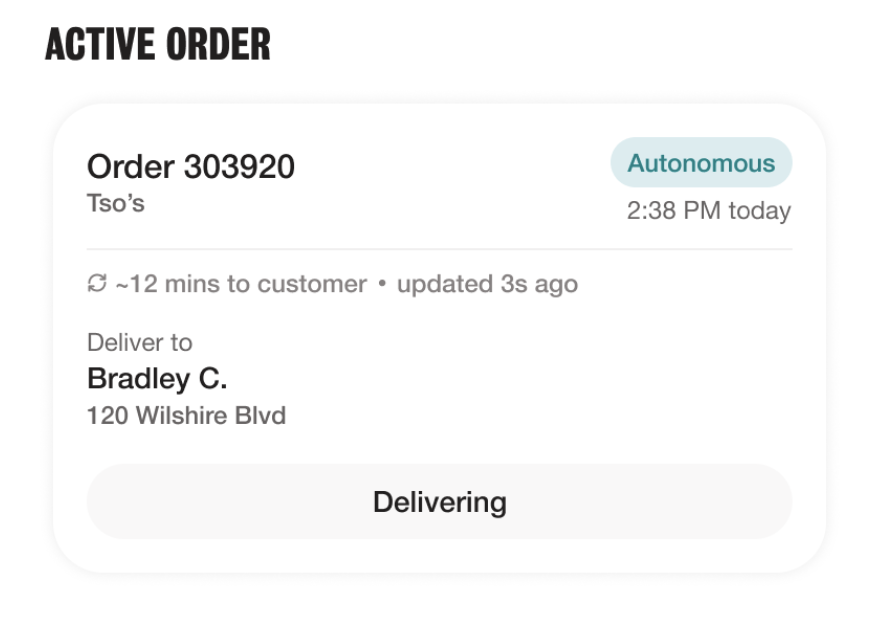
6. At the customer, they open the trunk and take their order.
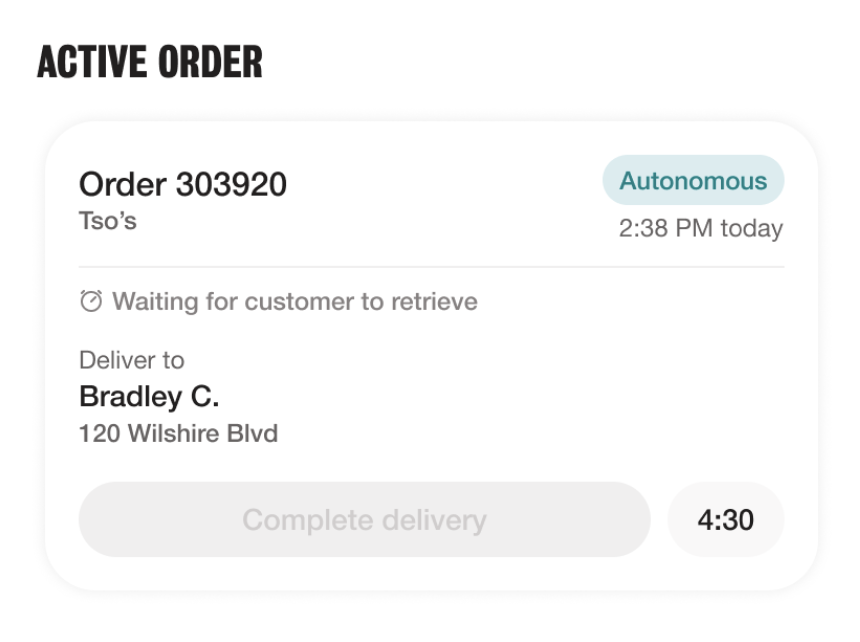
Once they've taken it, fill the short Complete delivery form to wrap up the order.
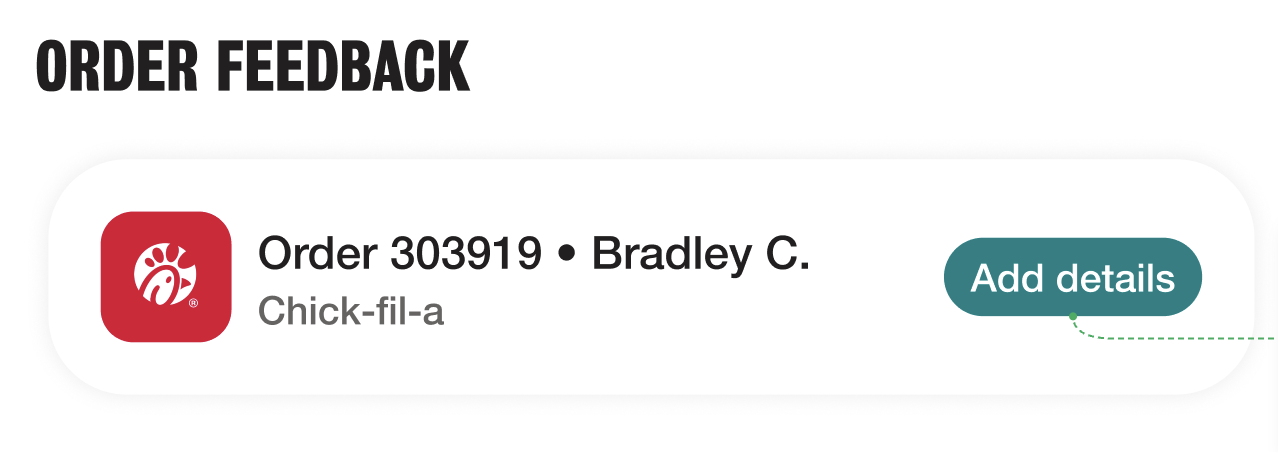
7. You'll see a confirmation banner, then the app is ready for the next order. On the Home screen, you can review all of your previous runs' completion forms and submit your final log while you wait for the next order.
That's it. No map to follow, no manual driving of the flow.
5 · Manual deliveries
A manual order runs exactly the same up to the drop-off. Instead of the customer taking it from the trunk, you hand the order over or leave it at the door, then complete the form.
The car still drives itself through the whole flow.
At the customer, hand the order to the person or leave it at the door, then complete the form.
For the finer points of manual drops, see the Field Playbook.
6 · When something needs you
Most of the time, do nothing. But for the moments that need a decision or go sideways – rejecting a run, a late store, a navigation takeover, a confused customer, a no-show – the Field Playbook is your reference. It covers the good-to-know details this walkthrough doesn't.
And remember, the support button is always on screen. Tap it to reach your on-shift Autolane Dispatch agent. A chat is available, but we recommend calling for anything urgent.
7 · The golden rule
Trust the app. It's built to drive itself and complete most deliveries with no input from you. Your value is attention and good judgment in the few moments that need your support – not pushing buttons the app would have handled.
When in doubt, let it run.